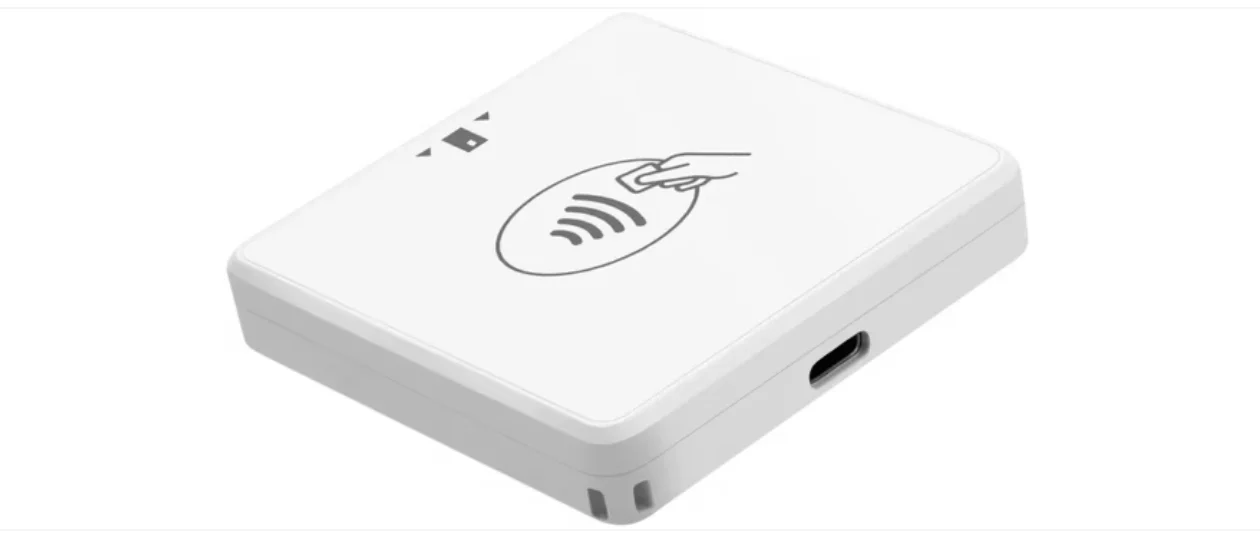
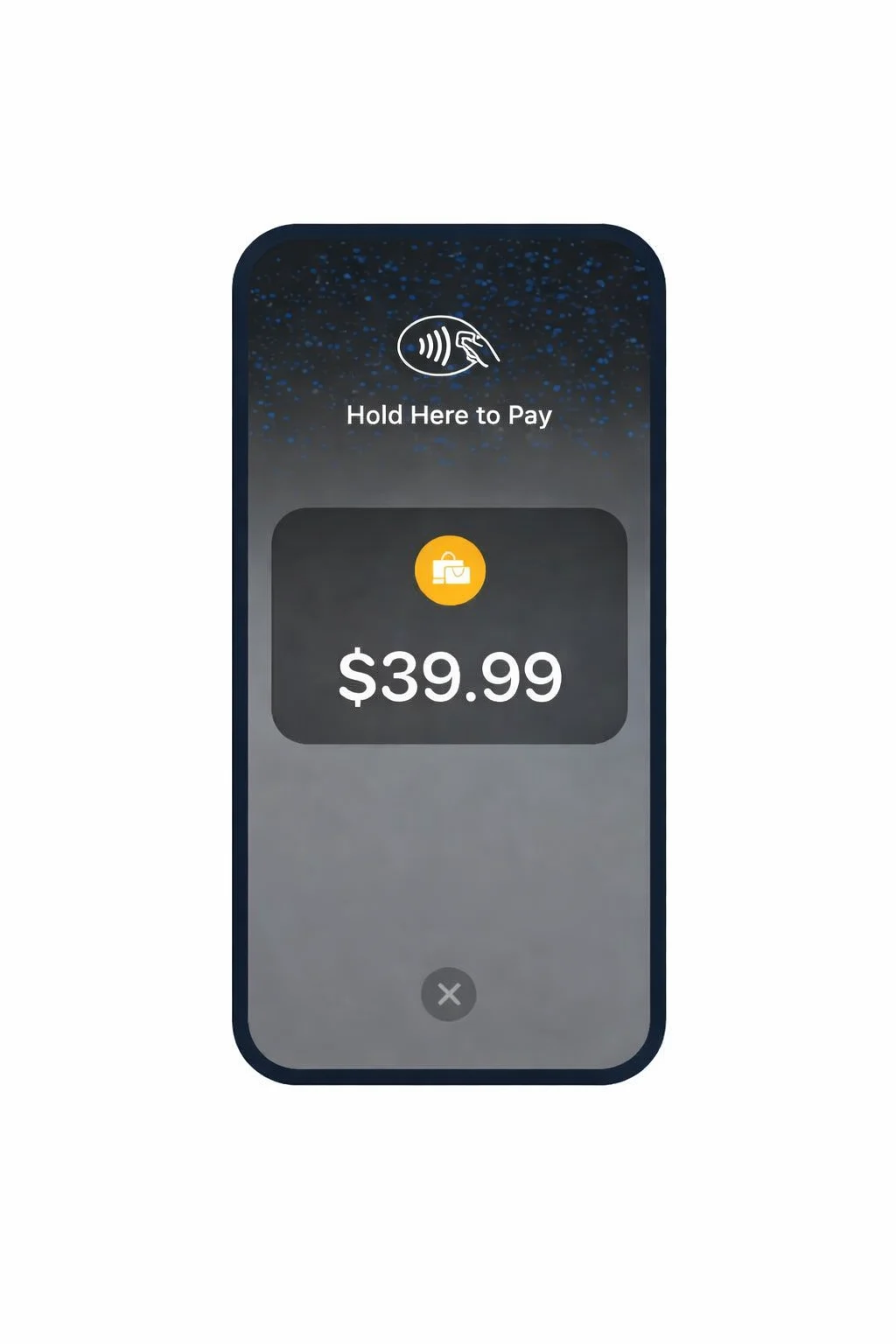
How to accept in person payments with Tap to Pay (no hardware required)

In this Article
You will find the guidance you need to accept payments using Tap to Pay

Recommendations before you start

  • Follow the steps below and test a $1 charge before your first live event. If you need an example page to test, you can copy this template to your organization by clicking "Save".
  • If you will be using your school's WiFi, please run this test using that same WiFi to anticipate any possible firewall rules that may block payments and contact help@omella.com to work with your IT staff.
  • We want to make sure your first event is stress free. Feel free to email the date, time and page to help@omella.com so we can monitor and be available.

Accepting payments with Tap to Pay

  1. Download the Omella app on your device and sign in with your existing Omella credentials: Apple Store or Play Store
  2. Open the payment page, select the items and head to checkout
  3. At checkout, press "Tap to Pay"
  4. Once it's ready, follow the prompt to complete payment by holding a card to your phone horizontally
  5. Rinse, repeat!

🎥 Video Walkthrough

⏳ Starts at 1:25

Questions? Refer to the FAQ below.
Up next
How to accept in person payments on Omella using the Stripe M2 Card Reader
You will find the guidance you need to set up your M2 Card Reader
Read More

What’s a Rich Text element?

The rich text element allows you to create and format headings, paragraphs, blockquotes, images, and video all in one place instead of having to add and format them individually. Just double-click and easily create content.

Static and dynamic content editing

A rich text element can be used with static or dynamic content. For static content, just drop it into any page and begin editing. For dynamic content, add a rich text field to any collection and then connect a rich text element to that field in the settings panel. Voila!

How to customize formatting for each rich text

Headings, paragraphs, blockquotes, figures, images, and figure captions can all be styled after a class is added to the rich text element using the "When inside of" nested selector system.