

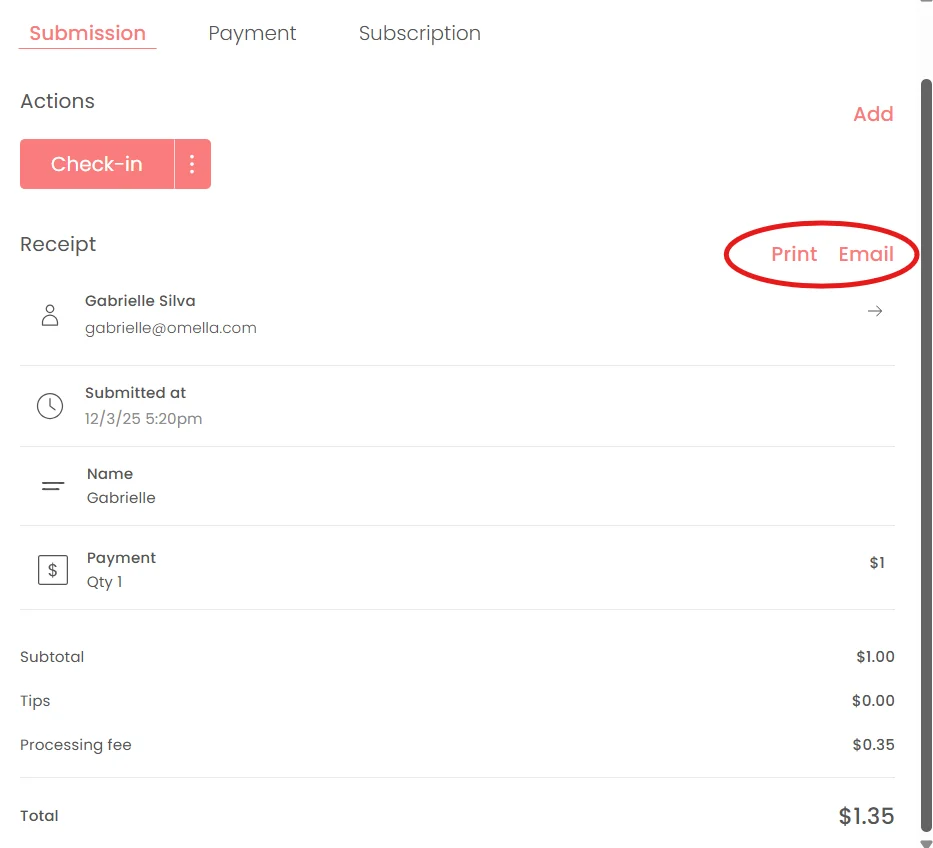
Organizers and payers can now easily print, save, or resend their receipts from Omella. This update gives both schools and families more control and convenience when accessing payment confirmations. With the Print option, users can print the receipt or save it as a PDF. With the Email option, they can resend the receipt to any email address.
👉 Follow the steps below to print or email a receipt:
For organizers
1️⃣ Open the page where the payment was made.
2️⃣ Click on Activity, search for the payment you want to view, and select it.
3️⃣ In the Submission window, click Print to print or save the receipt as a PDF.
4️⃣ To resend the receipt, click Email, enter the email address where you'd like to send it, and confirm.
For payers
Payers can access their receipt in two ways: immediately after completing the payment, or later through the confirmation email.
Right after completing the payment
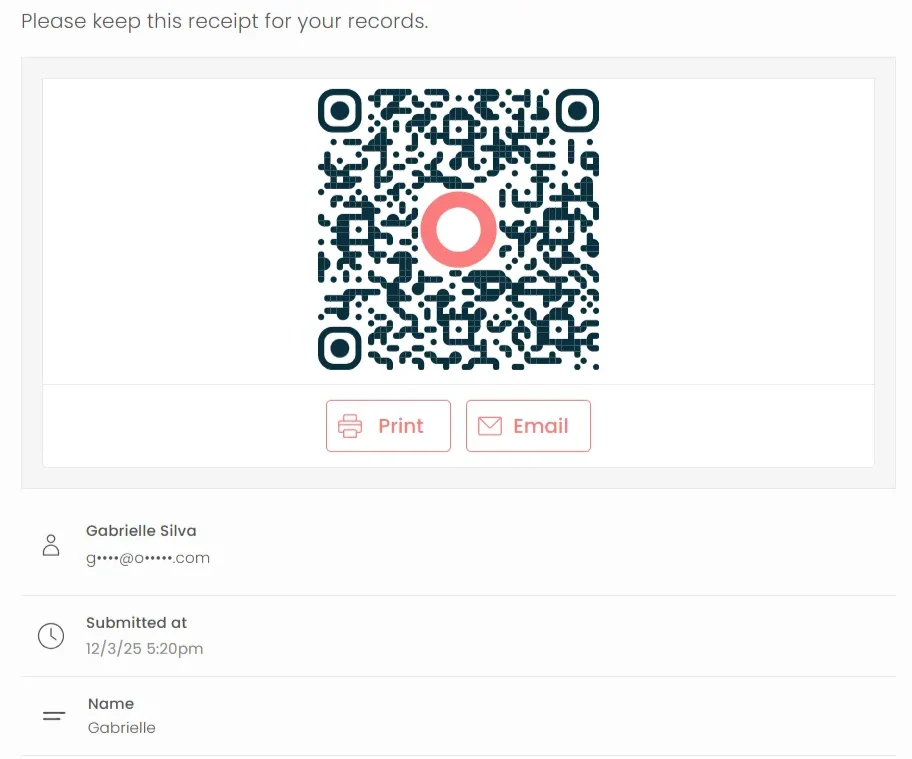
Once the payment is submitted, a confirmation page will open automatically.
This page includes:
- A QR code
- All payment details entered on the form
- Two buttons: Print and Email
From this page:
1️⃣ Click Print to print the receipt or save it as a PDF.
2️⃣ Click Email to resend the receipt to yourself or to another email address.
If the payer closes the confirmation page
They will still receive a payment confirmation email.
To access the receipt from their email:
1️⃣ Open your confirmation email.
2️⃣ Click View to open your receipt.
3️⃣ Click Print to print or save the receipt as a PDF.
4️⃣ Click Email to resend the receipt to yourself or another email address.