



🎥 Prefer watching?
Check out this quick video walkthrough:
1. Getting Started: Create Your Page
🕒 0:29 — Editing title, goal, and date fields
- Log in to Omella and select the “Team Fundraiser” template.
- Enter the foundational information: your organization name, program name, and how you’d like participants to refer to you (Coach Smith, Ms. Johnson, etc.).
- Set your start date, end date, and the team fundraising goal (the total amount you want to raise together).
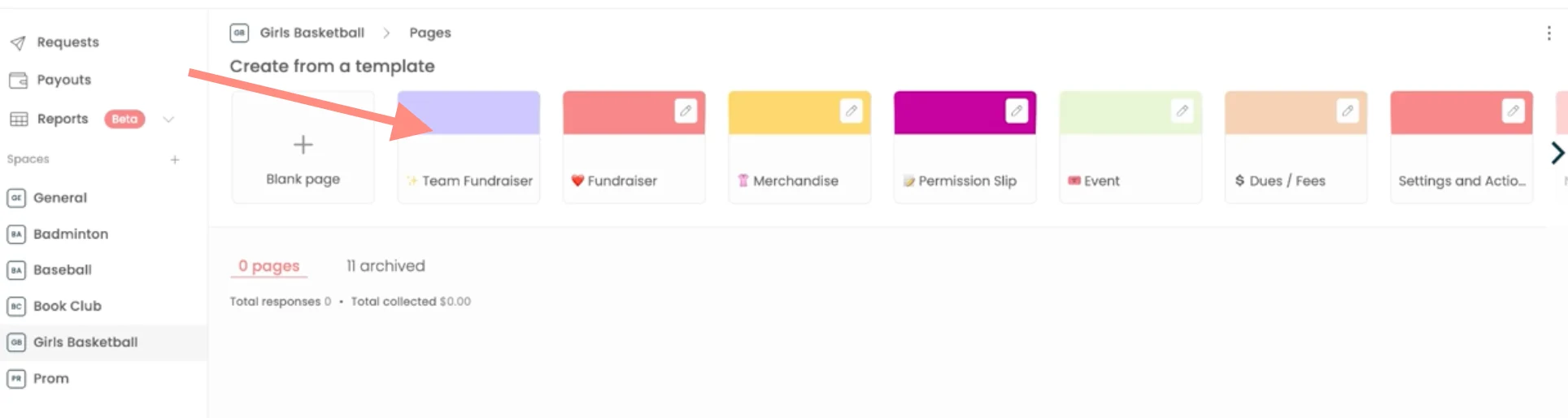
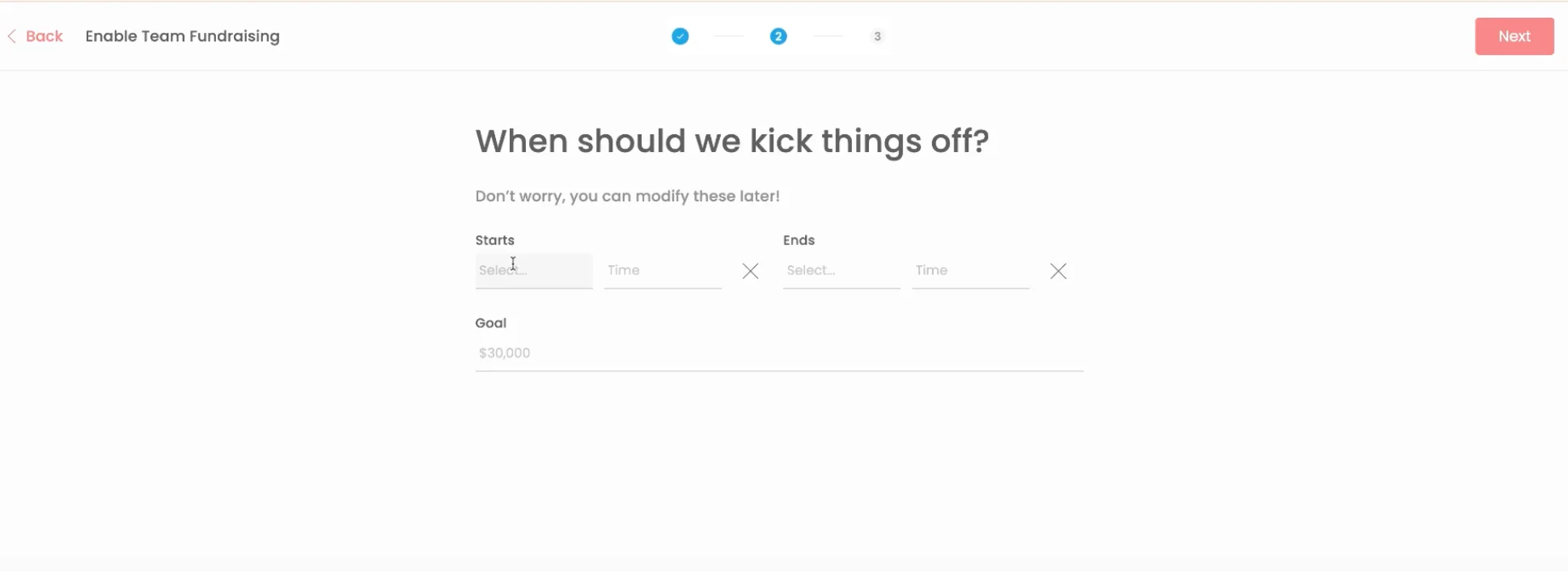
2. Customize Your Page
🕒 1:01 — Adding a call to action, logo, team picture, and participant goal
- Add a compelling short summary explaining what you’re raising money for and why. It helps supporters understand the cause.
- Upload a logo and a cover image to make your page stand out.
- Click Finish to create your initial page.
- Then, open Page Settings to set an individual goal for each participant. (Tip: divide the team goal by the number of participants for a simple benchmark.)
💡 All of these details can be updated anytime, even after your campaign launches. See minute 4:55 in the video to learn how.
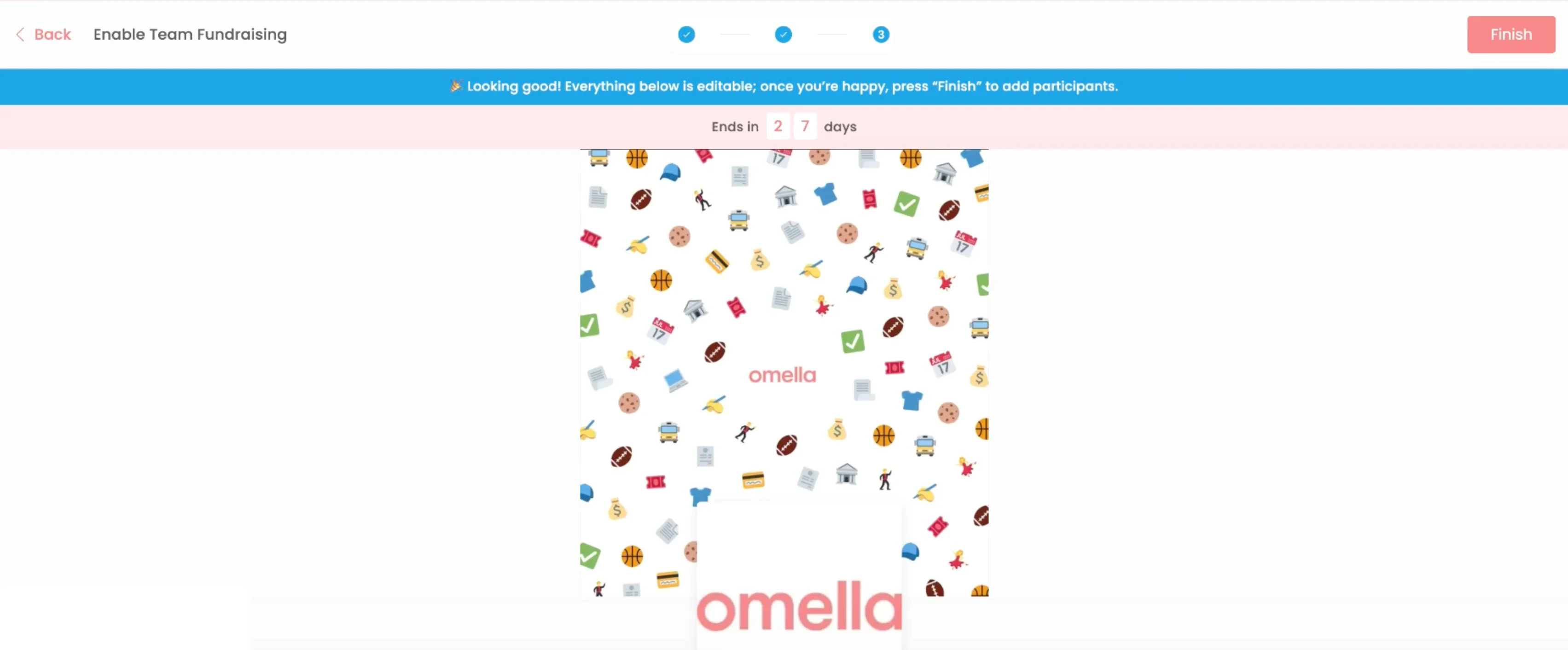
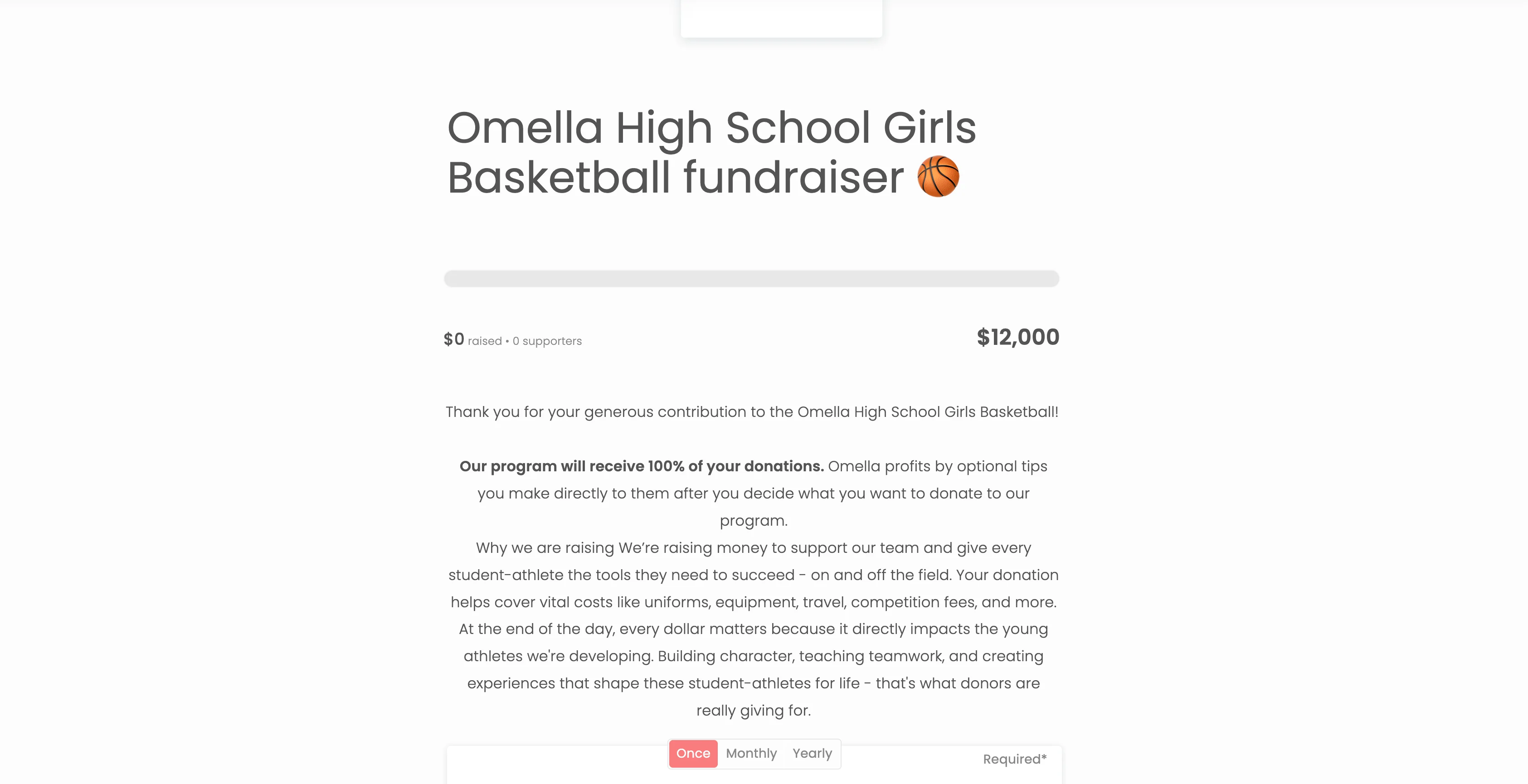
3. Invite Participants & Launch Strong
🕒 2:44 — Inviting your team
- Invite your participants in one of three ways:
- Enter their email addresses
- Share the page link
- Display or share your QR code

Once invited, participants will receive an email to create their profile and start sharing.
4. Participants: How to Share the Campaign
🎥 Watch this video for a full walkthrough:
After signing up, participants will be taken to the sharing screen, where they can:
- Enter email addresses (one per line or separated by commas)
- Share via SMS (available once the campaign is live)
- Post to social media or copy their unique sharing link
⚠️ Note: Omella automatically sends email reminders to contacts shared via email. If participants share via SMS, they’ll need to follow up manually.
5. Launch & Monitor Progress
🕒 3:45 — The Team tab
- Once your page is live, encourage participants to share with at least 20 contacts to build early momentum.
- Monitor your Team tab to track participation and progress. You can see:
- Who has joined
- Profile pictures and parent/guardian emails (if available)
- How much each person has raised
- Overall team progress
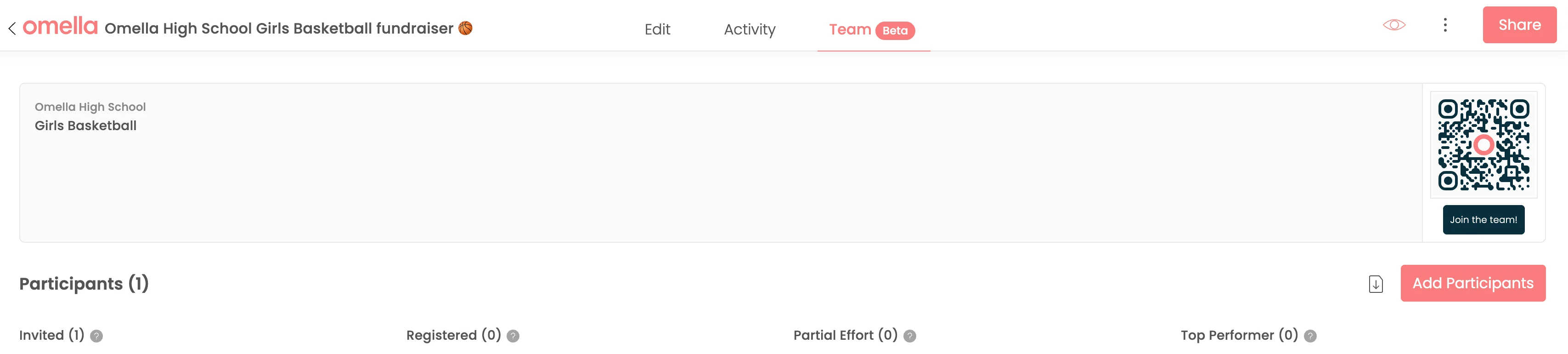
💡 Use these insights to celebrate active participants and gently nudge anyone who hasn’t started sharing yet.
6. Extending the Campaign, Updating the Goal, Adding Branding & Call to Action
🕒 4:55 — Updating your page
You can update your campaign at any time, including:
- Start/end dates
- Goal amount
- Images and logo
- Story and call to action
Need help? You can refer to this article.
Need Help or Want a Kickoff Review?
Our Success Team is here to help!
If you’d like a personalized walkthrough or want to review your campaign setup, email help@omella.com with your page link.
We’ll help ensure your fundraiser launches strong and stays on track for success.
Generate simple instructions for students to join your Omella fundraiser:
Access https://omella.com/kickoff and enter your campaign details to generate a PDF with instructions!
What Makes a Fundraiser Succeed?
Early sharing and active coach engagement help build momentum. Read more here.
🎉 Happy fundraising! We can’t wait to see your campaign take off!